cPanel
provides a very useful option to import email accounts using a CSV or
Excel file. This comes handy when you are migrating email accounts from
one host to another; it allows you to create all the email accounts in
the new host in one go.
Given below is the recommended CSV and Excel format of the mail accounts.
CSV Format:
For best results, use this format where the Email, Password and
Quota of the mail address are separated by the delimiter ‘comma (,)’.
Email,Password,Quota

jill@domain.com,1234,10

bill@domain.com,4567,8

phil@domain.com,8910,10
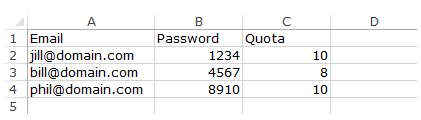
Excel Format:
Here is a sample layout of the Excel file.
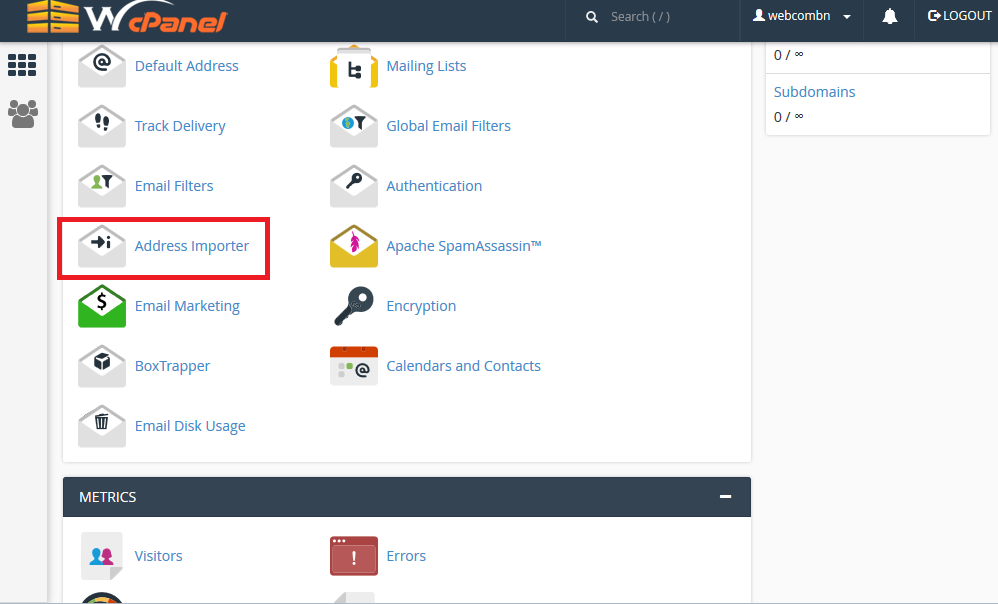
To import email addresses, login your cPanel. Under the
Email heading, click
Address Importer.
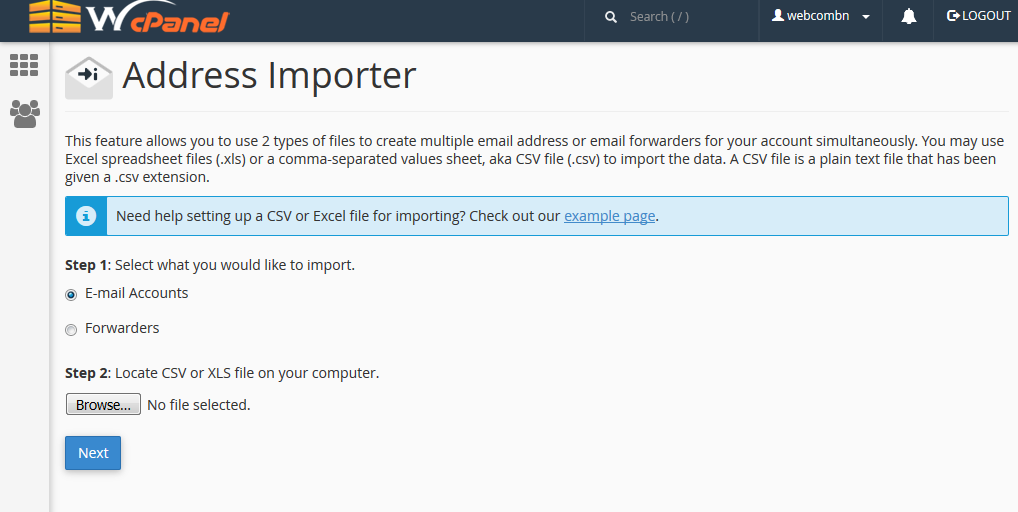
Select
E-mail Accounts option and choose either the CSV or Excel file from your computer.
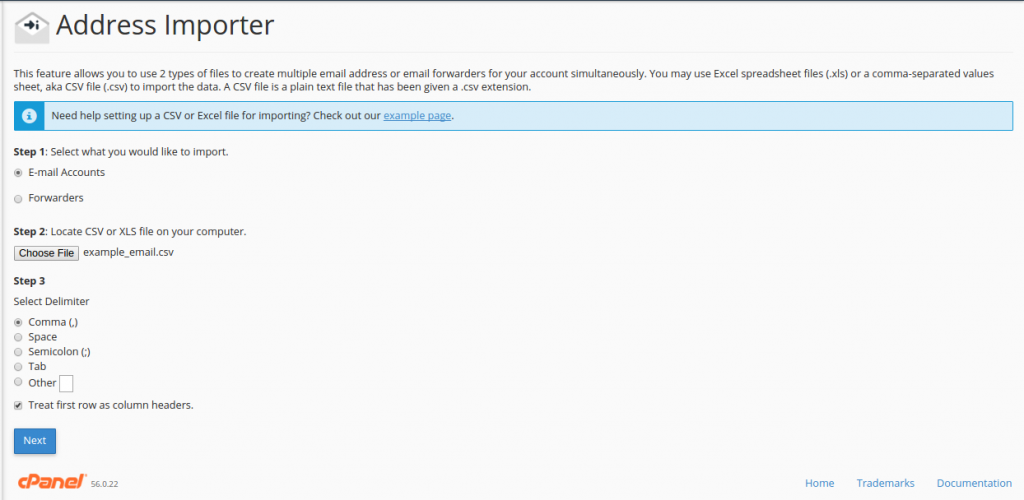
After selecting the file, choose the delimiter applicable to your file and check the option “
Treat first row as column headers” if you have added first row in the file as header.
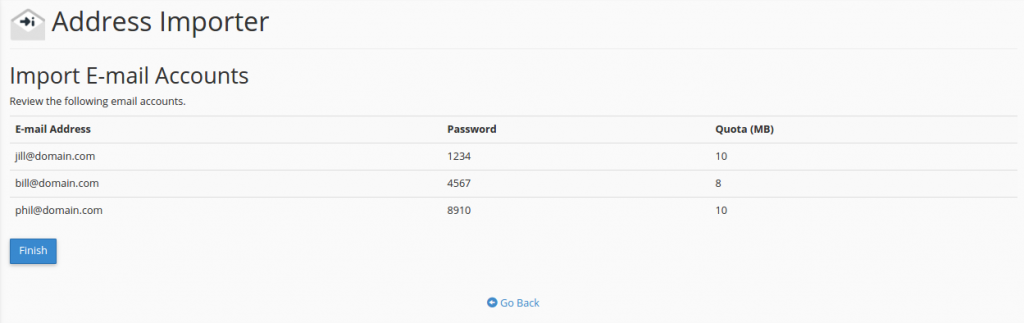
In the next page, select the domain for which these mail accounts are exported. Verify if the email address, password and the mail quota is correct and click
Finish to complete the import.
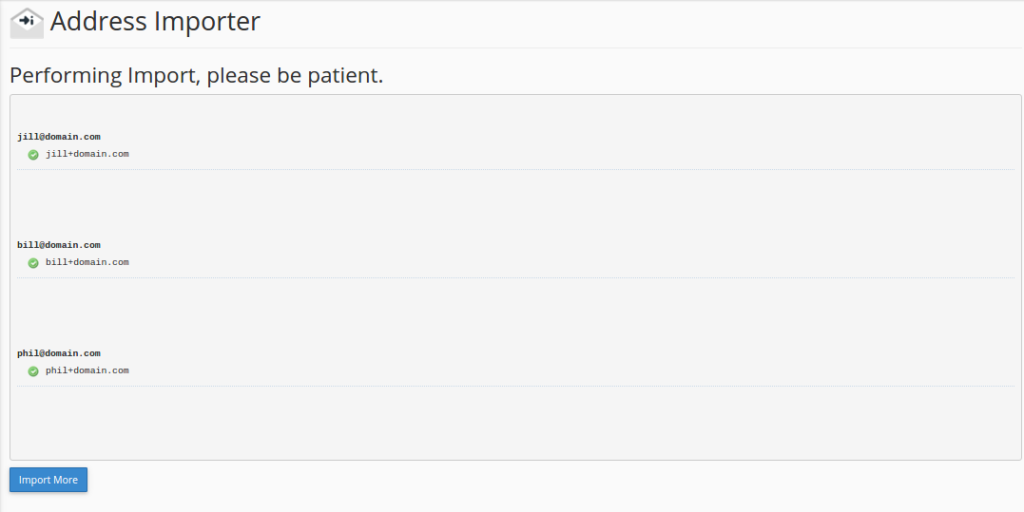
Once the import is done, cPanel will show the imported mail accounts.
Note: We offer all our clients a free migration service in which we will assist you in moving your website from your old host to ours. Our technical team will most likely be able to import these accounts for you as part of the migration process.